Hướng dẫn Windows Server 2022 này, hướng dẫn bạn cách làm thế nào để Cài đặt và Cấu hình FTP Server trong Windows Server 2022. FTP Server cho phép truyền files giữa client và server bằng cách sử dụng giao thức truyền file (File Transfer Protocol). File Transfer Protoco là một giao thức truyền thông chuẩn được sử dụng để truyền files.
Contents
- 1 Các bước cài đặt FTP Server
- 2 Install FTP Server
- 3 Cấu hình Passive Mode – FTP Server
- 3.1 1. Mở Server Manager dashboard, click Tools, và chọn Internet Information Services(IIS) Manager.
- 3.2 2. Chọn FTP Firewall Support.
- 3.3 3. Cấu hình Data Channel Port range và click Apply.
- 3.4 4. Click OK.
- 3.5 5. Khởi động lại (Restart) Microsoft FTP Service
- 3.6 6. Tạo một Inbound port allow rule trong Windows Firewall
Nội dung
- Cài đặt FTP Server
- Cấu hình Passive Mode – FTP Server
Môi trường demo
- Tên Server: ad-server1.company.com
- Operating System: Windows Server 2022 Datacenter
- IP Address: 192.168.146.3
Các bước cài đặt FTP Server
- Mở Add roles and features Wizard
- Select installation type
- Select destination server
- Select server roles
- Select features
- Select role services
- Confirm installation selections
Install FTP Server
1. Open Add roles and features Wizard
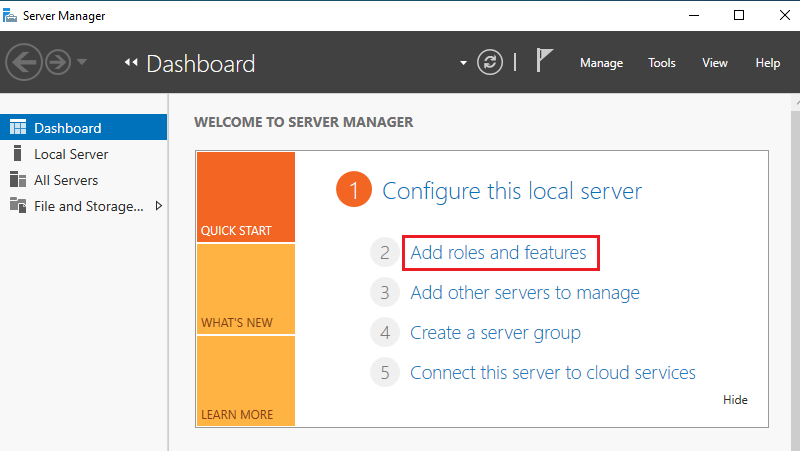
Mở Server Manager dashboard và click Add roles and features.
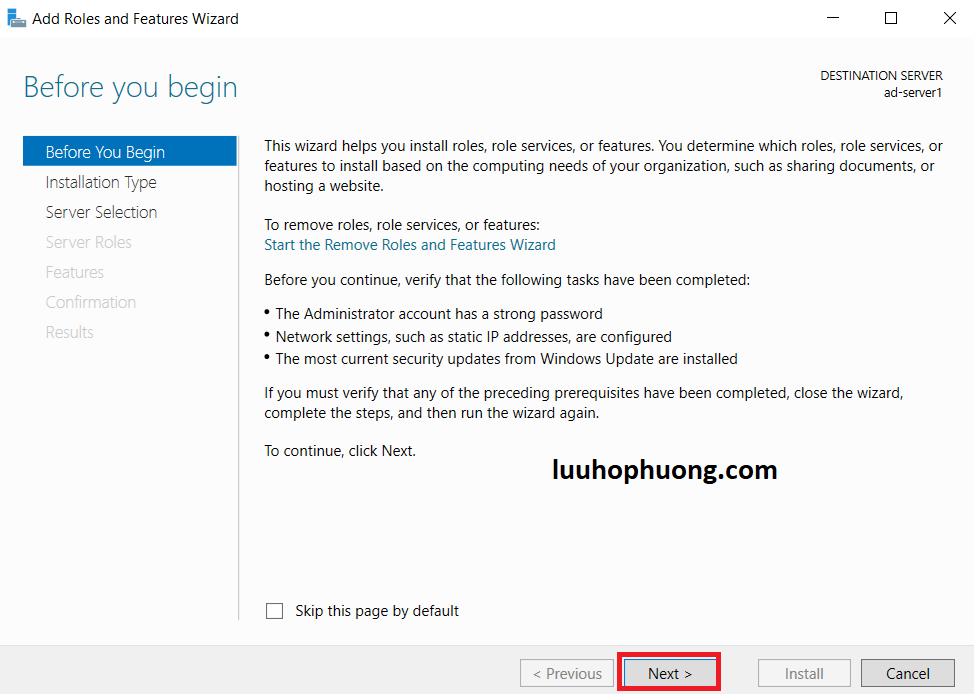
Before you begin, click Next.
2. Select installation type
Chọn Role-based or feature-based installation và click Next.

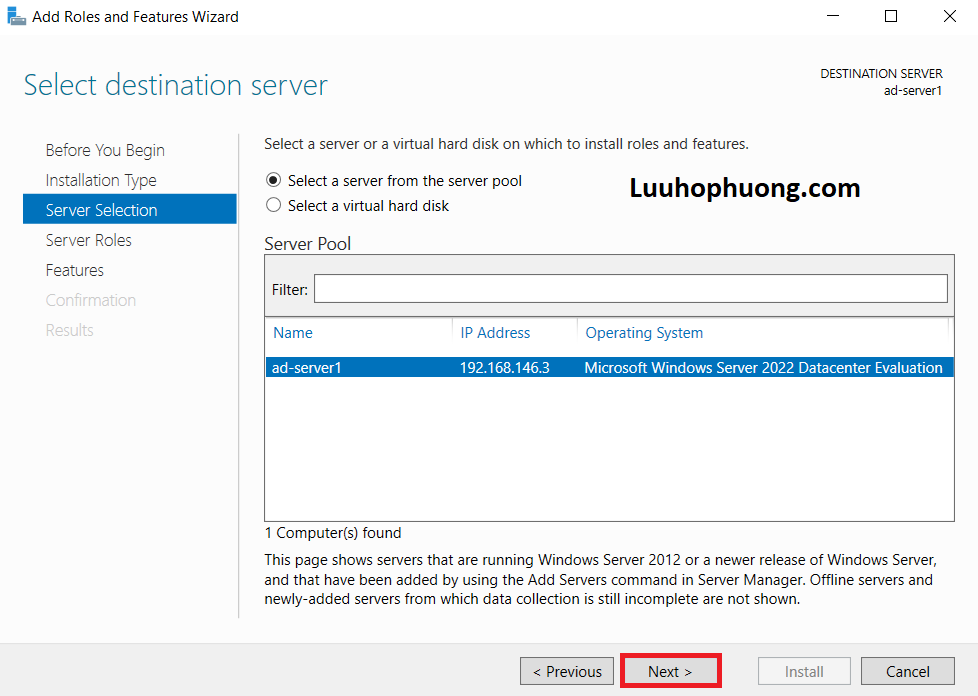
3. Select destination server
Chọn Server để add services và click Next.
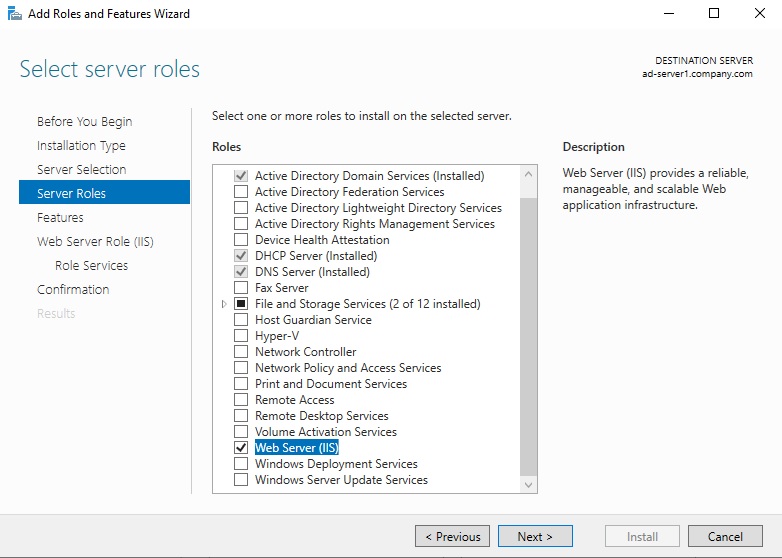
4. Select server roles
Chọn Web Server (IIS) box từ màn hình server roles.
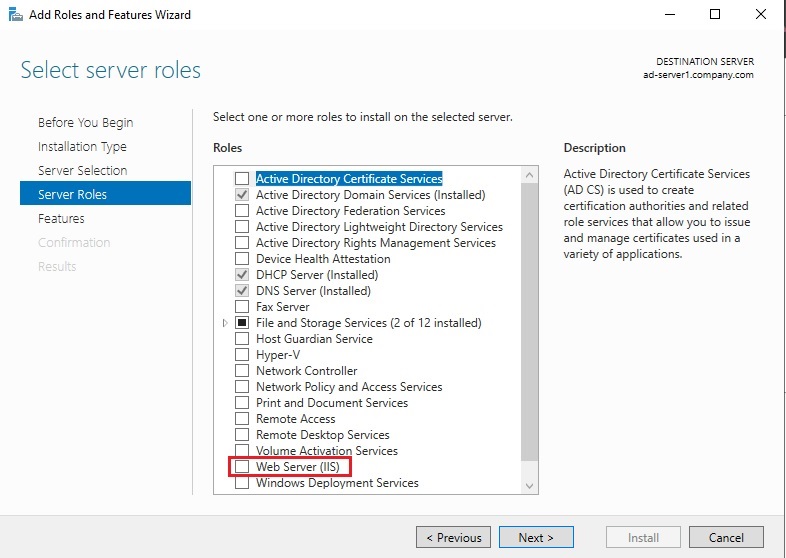
Ngay khi bạn chọn Web Server (IIS), một cửa sổ mới sẽ xuất hiện. Click Add Features.

Đảm bảo tùy chọn Web Server (IIS) đã được lựa chọn và click Next.
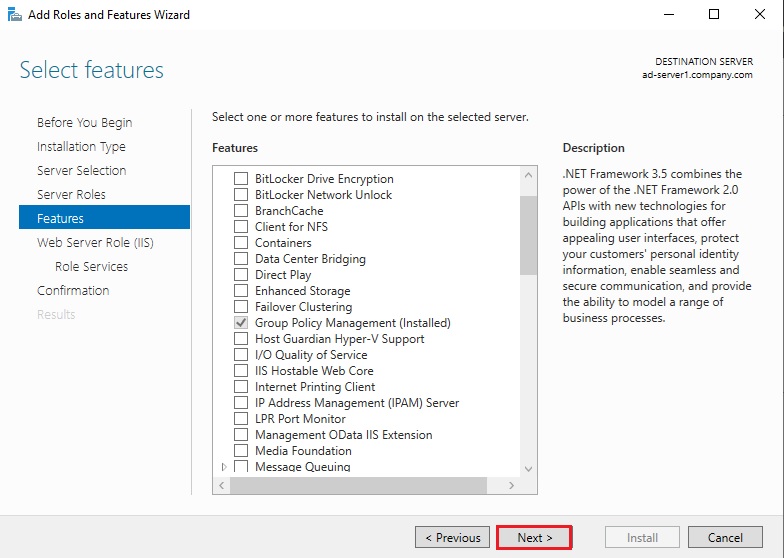
5. Select features
Trong màn hình select features , chỉ cần click vào Next vì hiện tại chúng ta không yêu cầu có bất kỳ tính năng bổ sung nào.
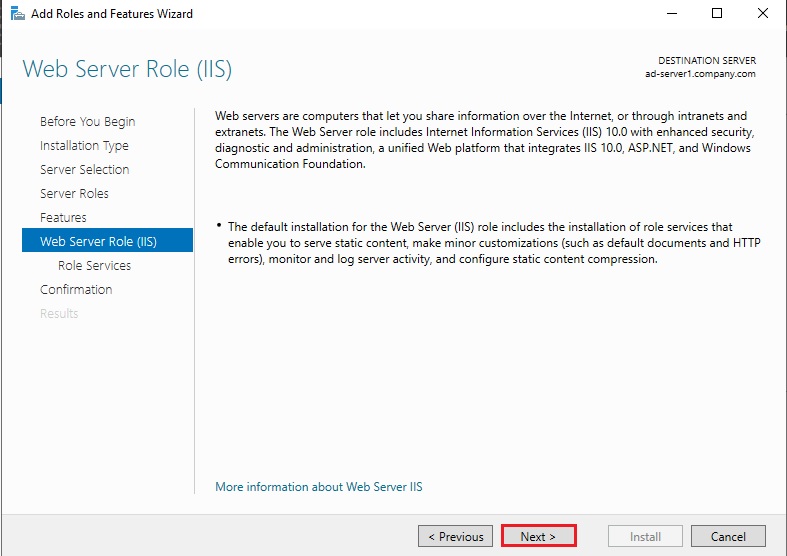
Trong màn hình Web Server Role (IIS), bạn có thể đọc thông tin tóm tắt về Web Server (IIS). Click Next để tiếp tục.
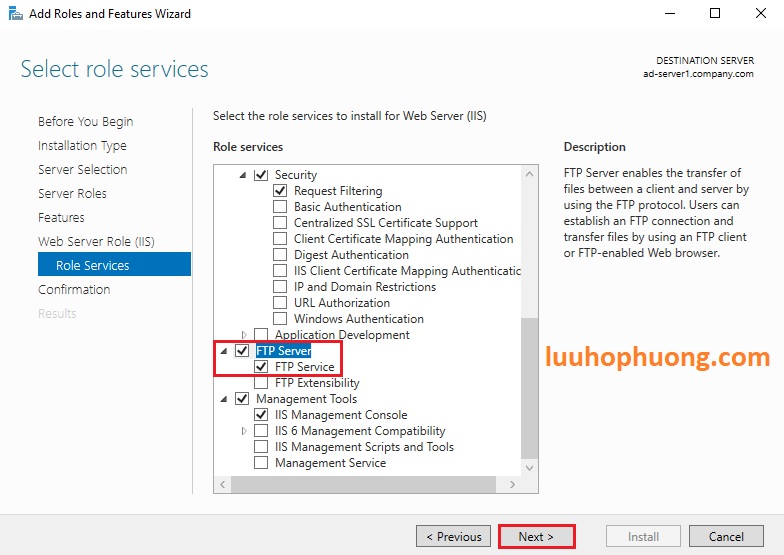
6. Select role services
Bật (Enable) FTP Service và click Next.
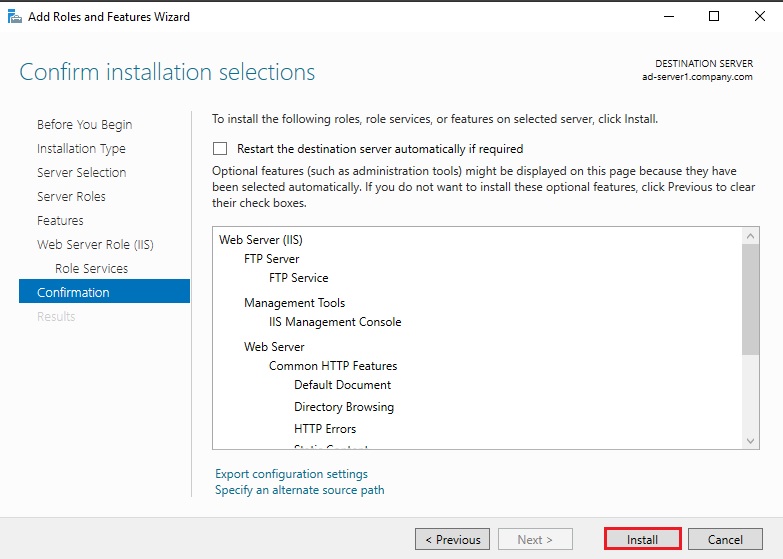
7. Confirm installation selections
Xác nhận installation selections và click Install.
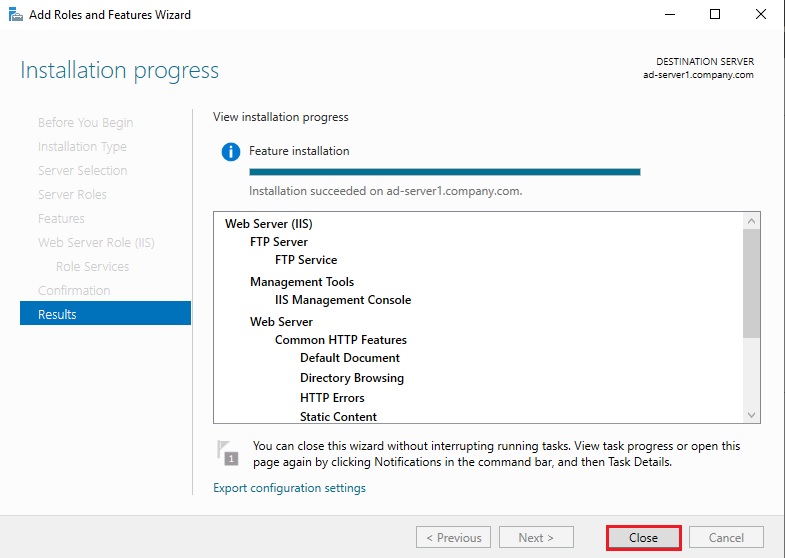
Sau khi kết thúc quá trình cài đặt, click Close.
Cấu hình Passive Mode – FTP Server
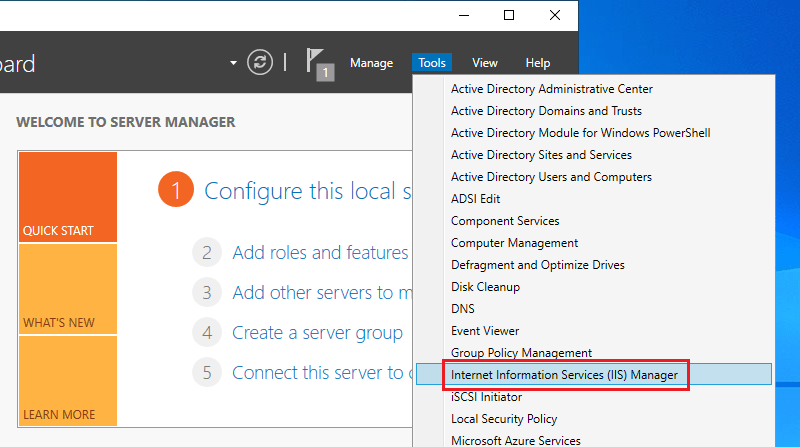
1. Mở Server Manager dashboard, click Tools, và chọn Internet Information Services(IIS) Manager.
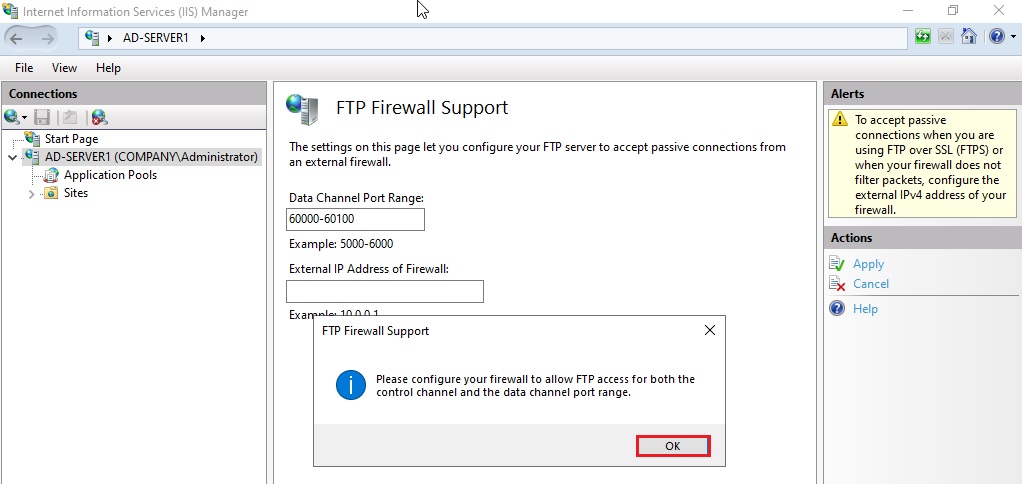
2. Chọn FTP Firewall Support.

3. Cấu hình Data Channel Port range và click Apply.
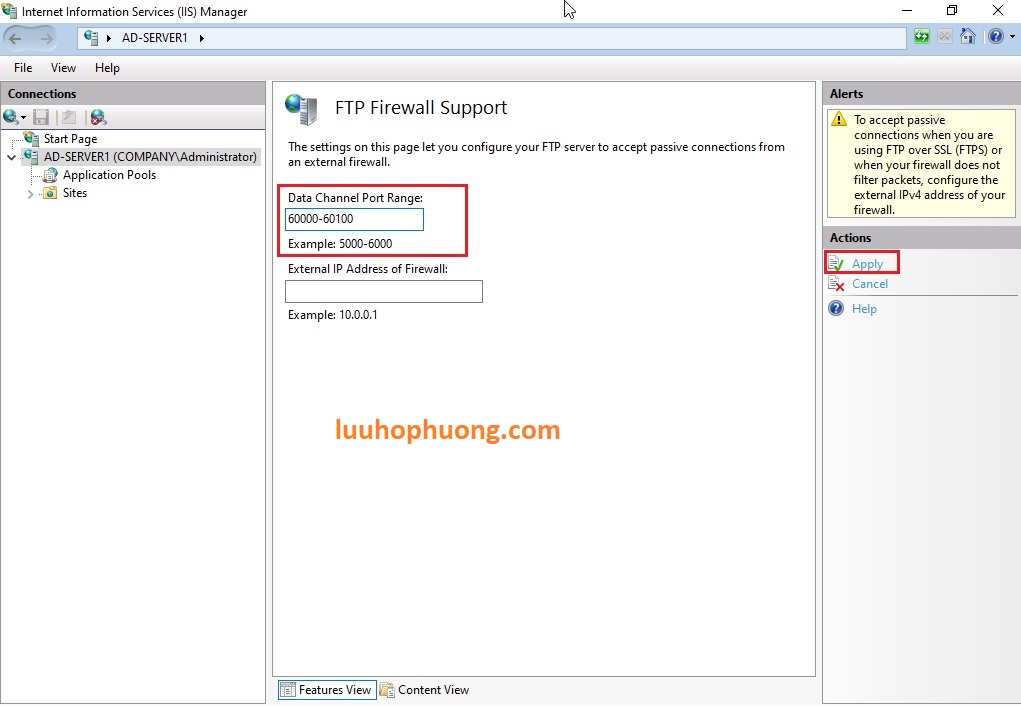
4. Click OK.
5. Khởi động lại (Restart) Microsoft FTP Service
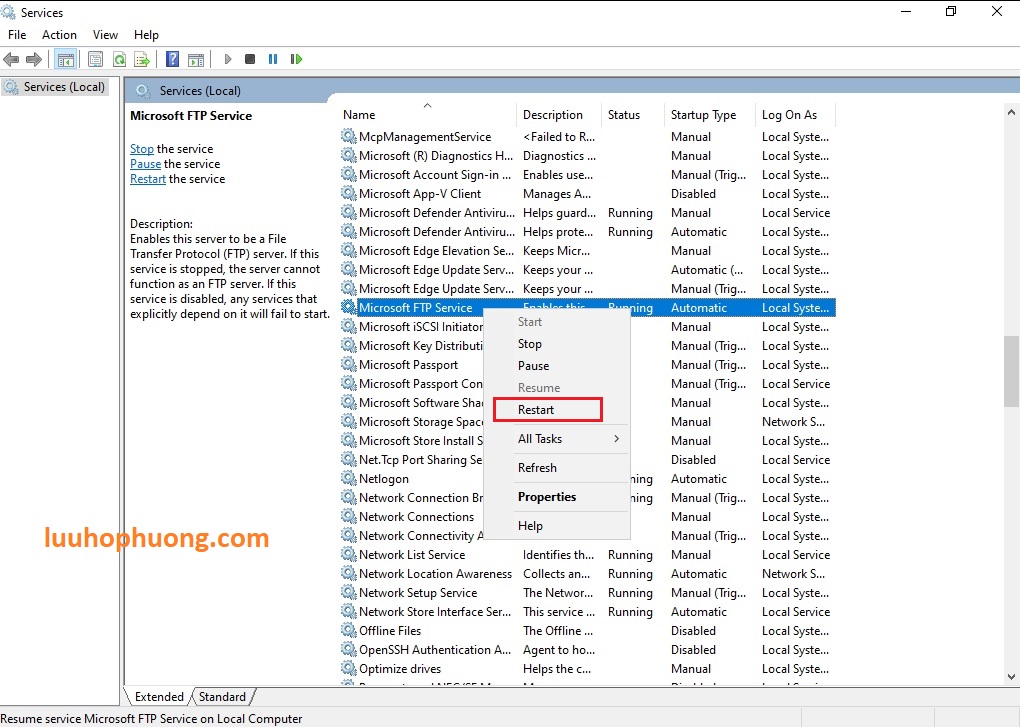
Mở Server Manager dashboard, click Tools, và select Services.

Click chuột phải vào Microsoft FTP Service và chọn Restart.
6. Tạo một Inbound port allow rule trong Windows Firewall
Tài liệu liên quan
Add inbound rule để cho phép passive ports mà bạn đã thiết đặt và cũng cho phép cổng 21 FTP Service như hình sau.